Brand kits
Brand Kits let you save all of your branding information in one place so it's ready to go whenever you need it.
Why this matters:
Save time, every video: No more filling in the same fields over and over. Set it once, use it everywhere.
Stay consistent: Your contact info, profile photo, and logo are always accurate and on-brand.
Manage multiple profiles: Running videos for multiple agents or brands? Create separate Brand Kits for each one and switch between them instantly.


Use it in your video
When you're in the video settings page, navigate to the Outro section. You'll see a Brand Kit selector there. If you've set a default, it'll already be selected.
From there, AutoReel automatically pulls in:
Your name, email, and phone number for the outro.
Your profile photo and brand logo.
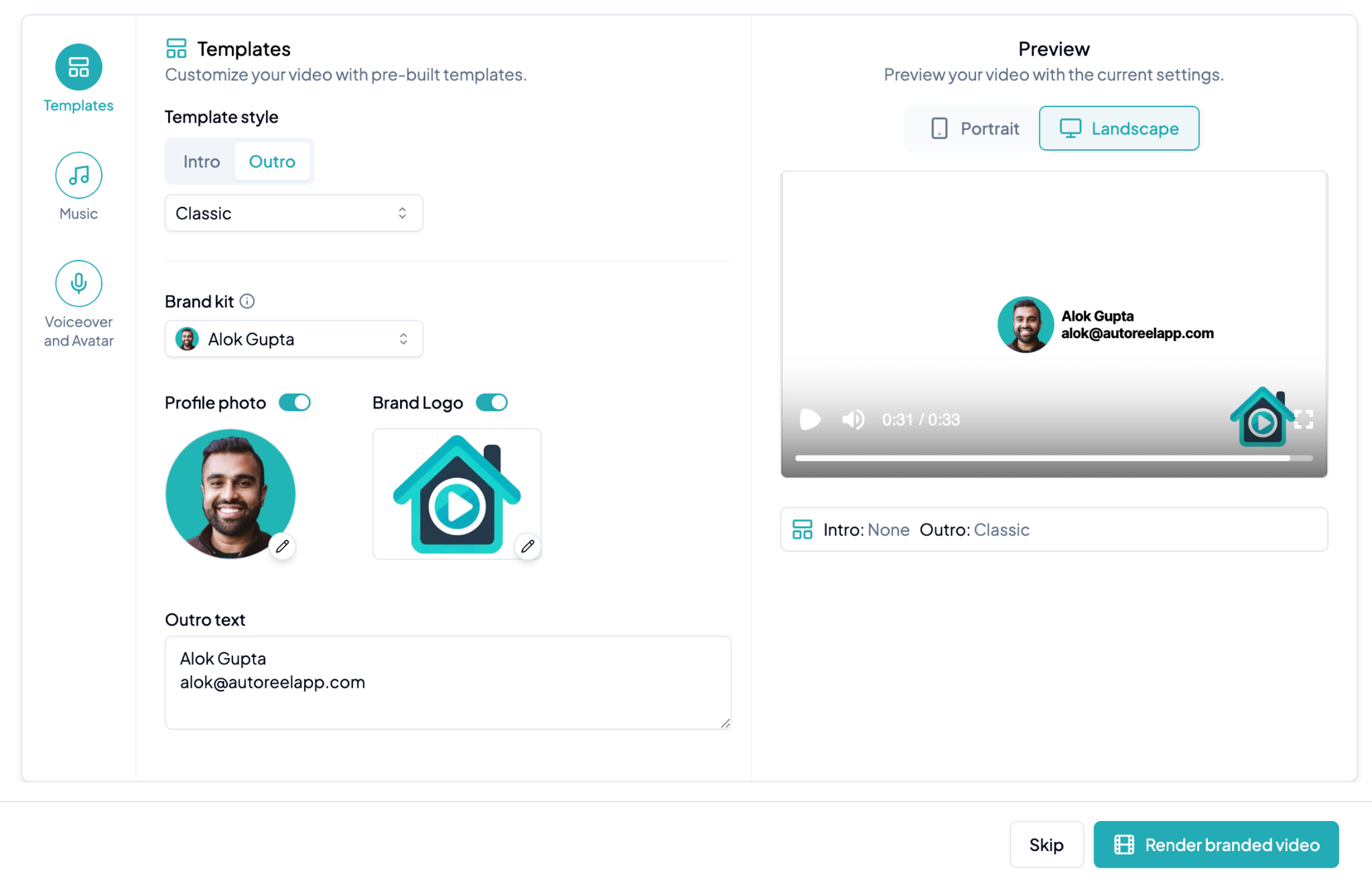
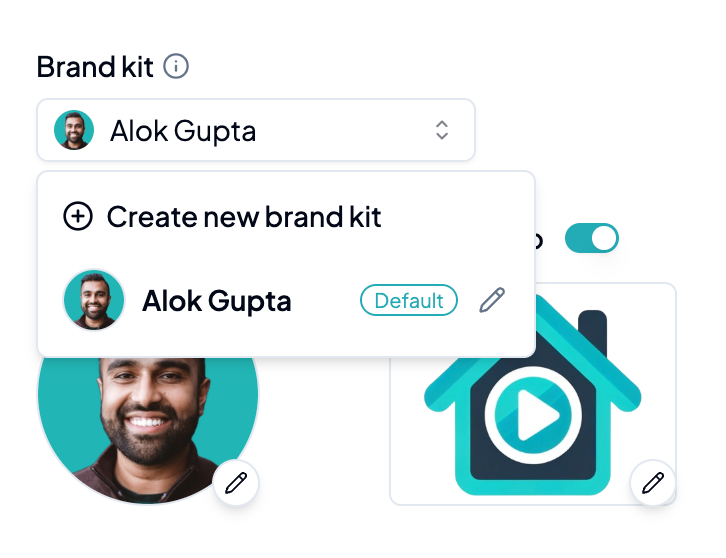
You can always switch Brand Kits, update an existing one, or create a new one right from this screen. And if you only want to use some of the info, no problem. Everything is customizable.
Last updated